
Managing Google Business Profile reviews across multiple locations can quickly become overwhelming. Without the right tools, your team might spend hours manually responding to customer feedback, struggling to maintain a consistent brand voice, or missing critical negative reviews that require immediate attention.
RateBizz streamlines this entire process through AI-powered review management designed specifically for multi-location businesses and franchise operators. This comprehensive guide will walk you through the complete RateBizz workflow — from account setup to generating AI-powered responses and analyzing your review performance.
1. Setting Up Your RateBizz Account
Getting started with RateBizz is straightforward and takes just a few minutes. Let's break down the process of creating your account and connecting your business locations.
Creating Your Account
- Navigate to RateBizz.com and click the Get Started Free button in the top right corner
- Enter your business email address and create a secure password
- Complete the registration form with your company information
- Check your email inbox for a verification link
- Click the verification link to activate your account
After verification, you'll be redirected to the RateBizz dashboard where you can begin setting up your profile.
Connecting Your Google Business Profile Locations
The trial plan allows you to connect up to 2 Google Business Profile locations. Here's how to link them:
- From your dashboard, click the Connect Locations button
- Select Google Business Profile as your platform
- You'll be prompted to authenticate with Google via OAuth
- Grant RateBizz permission to access your Google Business Profile data
- Select the locations you want to connect (up to 2 on the trial plan)
- Click Confirm Selections to finalize
Pro Tip: Choose your busiest locations for your trial period to maximize the value you get from the platform. You can always upgrade later to connect additional locations.
Understanding OAuth Security
RateBizz uses OAuth 2.0 authentication to securely connect to your Google account. This industry-standard protocol ensures:
- You never need to share your Google password with RateBizz
- You can revoke access at any time through your Google account
- Connection is established through encrypted channels
- Only the minimum necessary permissions are requested
This secure connection method allows RateBizz to fetch your reviews and post responses on your behalf while maintaining the highest security standards.
2. Syncing and Exploring Your Reviews
Once your locations are connected, RateBizz will immediately begin importing your review data and setting up real-time monitoring.
Initial Review Import
When you first connect a location, RateBizz automatically imports:
- All historical reviews (up to the last 12 months)
- Current star ratings and review metrics
- Any existing responses you've already provided
This import process typically takes just a few minutes, depending on your review volume. You'll see a progress indicator during the initial sync.
Real-Time Review Monitoring
RateBizz uses webhook technology to ensure you never miss a new review:
- New reviews appear in your dashboard within seconds
- Email notifications alert you to new reviews (customizable in settings)
- Priority flags automatically highlight negative reviews (1-3 stars)
This real-time sync means you'll always be working with the most current data, allowing for timely responses to customer feedback.
Navigating the Review Dashboard
The main review dashboard is your command center for all review management activities:
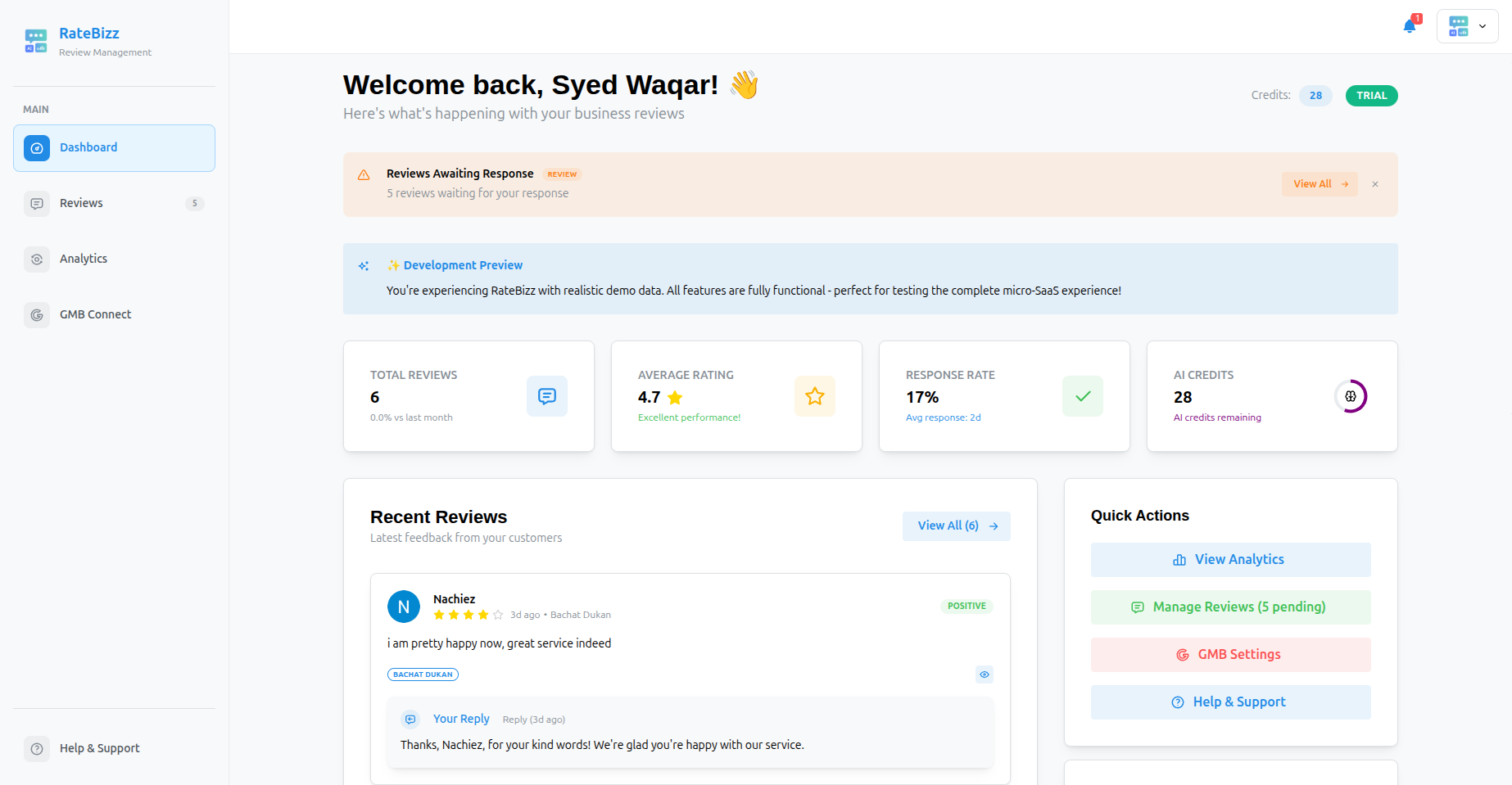
Key elements of the dashboard include:
-
Filtering options - narrow down reviews by:
- Star rating (1-5 stars)
- Date range
- Location
- Response status (responded/unresponded)
- Custom tags you've applied
-
Priority queue - automatically highlights:
- Recent negative reviews (1-3 stars)
- Reviews with specific keywords you've designated as important
- High-priority locations you've flagged
-
Bulk selection tools - select multiple reviews for batch operations
Note: The search function allows you to quickly find reviews containing specific keywords or phrases, which is particularly useful for identifying common themes or issues across locations.
Organizing Reviews with Tags
Tags are a powerful way to categorize reviews for better organization:
- Click on a review to open the detail view
- Select the Tags dropdown
- Choose from existing tags or create a new one
- Apply multiple tags as needed for cross-referencing
Common tagging strategies include:
- Product/service categories mentioned
- Issue types (billing, service quality, staff behavior)
- Follow-up status (needs attention, resolved, escalated)
- Promotional mentions (specific campaigns or offers)
Tags can later be used for filtering, reporting, and identifying trends across your locations.
3. Generating and Refining Review Responses
The core value of RateBizz comes from its AI-powered response generation capabilities. Let's explore how to create and refine responses for both individual and bulk reviews.
Responding to Individual Reviews
For personalized attention to a specific review:
- Click on any review in your dashboard to open the detail view
- Review the customer's feedback carefully
- Click the Generate Response button
- RateBizz will create a contextual reply based on the review content
- Review the AI-generated response and make any necessary edits
The generated response will:
- Thank the customer by name (when available)
- Reference specific points mentioned in their review
- Maintain your brand voice and tone
- Include an appropriate call to action or next steps
AI Enhancement Tools
Need to refine a response? RateBizz offers powerful enhancement options:
- Regenerate - Create a completely new response if the first one doesn't meet your needs
- Tone Adjustment - Modify the response to be more formal, friendly, apologetic, or grateful
- Length Adjustment - Shorten or lengthen the response as needed
- Manual Editing - Direct text editing for complete customization
To access these tools:
- Open a review with a generated response
- Click Enhance Response
- Select your desired adjustment from the dropdown menu
- Review the updated response
- Save your changes
Pro Tip: For negative reviews, use the tone adjustment to create an appropriately apologetic response that acknowledges the customer's concerns while still maintaining your brand standards.
Bulk Response Generation
For efficient handling of multiple reviews:
- From the main dashboard, use filters to identify groups of similar reviews
- Select multiple reviews using the checkbox next to each one
- Click the Bulk Generate button in the action bar
- Confirm your selection and watch as RateBizz generates unique responses for each review
Each response is individually tailored to the specific review content, even in bulk mode. This ensures that customers receive personalized replies while saving you significant time.
Understanding Confidence Scores
Each AI-generated response includes a confidence score indicating how well the AI understood the review and created an appropriate response:
- High confidence (80-100%) - Ready to send with minimal review
- Medium confidence (50-79%) - May need light editing before sending
- Low confidence (<50%) - Requires careful review and potential rewriting
Focus your attention on medium and low confidence responses to ensure quality before publishing.
Managing Response Templates
While AI generates contextual responses, you can also create templates for common scenarios:
- Navigate to Settings > Response Templates
- Click Create New Template
- Name your template and craft the response text
- Add variables like {customer_name} or {business_location} for customization
- Save the template for future use
Templates can be applied directly to reviews or used as a starting point for AI enhancement.
4. Approving and Publishing Responses
RateBizz's workflow ensures quality control through a streamlined approval process before responses are published to Google.
Review and Approval Process
After generating responses:
- Review each response for accuracy and brand alignment
- Make any necessary edits directly in the response field
- Mark the response as Ready to Send using the status dropdown
- Responses marked as ready will appear in the publishing queue
For teams with multiple users, you can assign specific approval roles:
- Drafters can generate and edit responses
- Approvers can mark responses as ready to send
- Publishers can post responses to Google
This workflow ensures proper oversight while maintaining efficiency.
Publishing to Google
Once responses are approved:
- Navigate to the Publishing tab in your dashboard
- Review all responses marked as Ready to Send
- Select the responses you wish to publish (or use Select All)
- Click the Publish to Google button
- Confirm the action when prompted
RateBizz will then post each response to the appropriate Google Business Profile review using your OAuth connection. A progress indicator will show the status of the publishing process.
Tracking Published Responses
After publishing:
- Response status changes to "Published" in your dashboard
- Timestamp shows when the response was posted
- Response appears on your Google Business Profile (typically within minutes)
- Full audit log records who generated, approved, and published each response
Handling Publishing Errors
Occasionally, you might encounter publishing errors due to:
- Google API limitations or temporary outages
- Changes to the review on Google's side
- Connection issues
If an error occurs:
- The response will be flagged with an error indicator
- Click on the error icon to see details about the issue
- Follow the recommended resolution steps
- Retry publishing when resolved
Note: RateBizz automatically retries failed publications up to three times before requiring manual intervention.
5. Analyzing Review Performance
RateBizz provides comprehensive analytics to help you understand trends and measure the impact of your review management efforts.
Dashboard Analytics Overview
The Analytics dashboard provides at-a-glance insights:
- Overall star rating average across all locations
- Rating trends over time (daily, weekly, monthly views)
- Response rate and average response time
- Volume of reviews by star rating
- Performance comparisons between locations
These metrics help you quickly assess your reputation status and identify areas for improvement.
Sentiment Analysis
Beyond star ratings, RateBizz analyzes review text to identify:
- Common themes and topics mentioned
- Sentiment trends (positive/negative language)
- Emerging issues across locations
- Frequently mentioned products or services
This natural language processing helps you understand the "why" behind your ratings.
Response Performance Metrics
Measure the effectiveness of your review responses with metrics like:
- Response time averages (how quickly you're replying)
- Review update rate (how often customers update reviews after your response)
- Rating improvements following responses
- Engagement with follow-up actions
These insights help you refine your response strategy for maximum impact.
Exporting Reports
For deeper analysis or presentation purposes:
- Navigate to the Reports section
- Configure your report parameters (date range, locations, metrics)
- Select your preferred format (CSV, PDF, or Excel)
- Click Generate Report
- Download the completed report
Custom reports can be scheduled for automatic delivery to stakeholders on a daily, weekly, or monthly basis.
Pro Tip: Schedule monthly report delivery to location managers to foster healthy competition and accountability for review performance across your business.
6. Optimizing Your RateBizz Experience
As you become familiar with the basic workflow, consider these advanced strategies to maximize your results.
Managing AI Credits Efficiently
Your trial includes 50 AI credits per month. Each credit action (generation, enhancement, etc.) uses one credit. To optimize usage:
- Focus on responding to recent reviews first
- Prioritize negative reviews that need immediate attention
- Use bulk generation for similar positive reviews
- Save manual writing for very complex situations
Monitor your credit usage in the dashboard to ensure you're allocating resources effectively.
Setting Up Custom Workflows
Customize RateBizz to match your team's processes:
- Navigate to Settings > Workflow
- Define custom review stages (e.g., Needs Response, Drafted, Ready for Approval)
- Create automated rules for moving reviews between stages
- Set up notification triggers for each stage
- Assign team members to specific workflow roles
Custom workflows help larger teams coordinate efficiently while maintaining accountability.
Implementing Response Rules
Create rules to standardize your response approach:
- Set minimum response lengths for different star ratings
- Create auto-tagging rules based on review content
- Define priority escalation criteria
- Establish maximum response timeframes by review rating
These rules help maintain consistency across your brand while ensuring appropriate handling of each review type.
Integrating with Other Tools
RateBizz can connect with your existing tech stack:
- CRM integration for customer history lookup
- Slack/Teams notifications for new reviews
- Zapier connections for custom workflow automation
- Calendar integration for task management
Explore integration options in Settings > Integrations to create a seamless experience.
Conclusion: Maximizing Your Review Management Success
Effective review management with RateBizz follows a simple but powerful workflow:
- Connect your Google Business Profile locations securely
- Sync reviews in real-time with webhook technology
- Generate contextual AI responses individually or in bulk
- Refine responses with enhancement tools to perfect your brand voice
- Approve and publish responses through a controlled workflow
- Analyze performance to continuously improve your strategy
By following this guide, you'll transform review management from a time-consuming chore into a streamlined process that builds your brand reputation while saving valuable hours each week.
Remember that consistent, thoughtful responses to customer reviews not only improve your online presence but also provide valuable insights into customer experience across your locations. RateBizz makes this process efficient, ensuring you never miss an opportunity to engage with your customers.
Next Steps
Ready to experience the difference RateBizz can make for your multi-location business?
- Sign up for your free trial at RateBizz.com
- Connect your first two locations
- Generate your first batch of AI responses
- Watch as your review management time decreases while response quality improves
The free trial includes 50 AI credits monthly and access to all core features — more than enough to demonstrate the significant time savings and quality improvements RateBizz brings to your reputation management workflow.